Explore the Navigate360 Student Mobile App
"Navigate" your "Journey" at ETSU
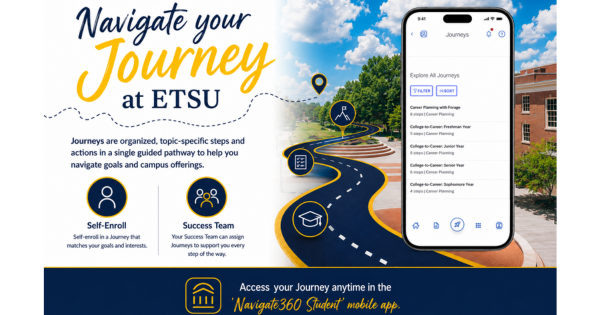
What are Journeys?
Journeys are organized, topic-specific steps and actions in a single guided pathway to help you navigate goals and campus offerings! There are two types of Journeys:
-
- All Available: In the mobile app under the Journeys icon, click Explore All Journeys to find Journeys available to any student.
- Specialized: Members of your Success Team can choose to assign you a specific Journey to support you. These will still be found under the Journeys icon under Current Journeys, but must be assigned to you.
Why Follow Journeys?
-
- Discover Opportunities: Explore campus resources and offerings that support your succcess.
- Take Action: Complete meaningful actions that move you closer to your goals.
- Stay Organized: Break big goals into manageable steps and track your progress.
- Support Every Step: Your Success Team is here to guide and support you along the way.
Example Journeys
-
- Journeys available to every student include:
- College-to-Career: Freshman Year - Follow the steps University Career Services (UCS) recommends to complete during the Freshman year for Career Readiness.
- College-to-Career: Sophomore Year - Follow the steps University Career Services (UCS) recommends to complete during the Sophomore year for Career Readiness.
- College-to-Career: Junior Year - Follow the steps University Career Services (UCS) recommends to complete during the Junioe year for Career Readiness.
- College-to-Career: Senior Year - Follow the steps University Career Services (UCS) recommends to complete during the Senior year for Career Readiness.
- Career Planning with Forage - Forage is a FREE resource through Navigate that provides day-in-the-life job experience. Develop your skills and gain a better understanding of different roles and sectors by working through self-paced modules that utilize tasks like those you would complete during a traditional internship.
- The following campus support offices utilize Specialized Journeys:
- Honors College - Journeys are for Changemaker and Global Citizen Scholars.
- Jordan Center - Currently use Journeys for Sophomore Jordan Scholars.
- Journeys available to every student include:
Download the App
Why Download the Mobile App?
The Navigate app is your personal advisor in your pocket; Whether you are looking for Academic Advising, Tutoring, or fun outside of the classroom, Navigate360 Student will connect you to the right resources and people, giving you the tools for success at your fingertips! Never miss out on important reminders by enabling push notifications. See Guides & Tutorials below for vido and pdf step-by-step instructions on app features.
*Users must have iOS 16.4 or higher OR Android 11 or higher to operate the app*
Access "Navigate360 Student"
- Search and download "Navigate360 Student" in your app store
- Once installed, search for East Tennessee State University
- Enter your ETSU username and password to login
- Answer a short survey to personalize your app experience
- Allow push notifications
To access Navigate360 on your computer, click here.
App Special Features
-
- ETSU Quick Links - Quickly access ETSU important links such as D2L, DegreeWorks, and Outlook.
- Checklist - Find important To-Dos sent to you from members of your Success Team or create your own digital To-Do list. Check off tasks as you complete them!
- My Docs - Find important Notes sent to you from members of your Success Team.
- Journeys - Self-enroll in organized, topic-specific steps to help you navigate goals and campus offerings. Journeys assigned to you by a member of your Success Team will appear under Current Journeys.
- Events - See Events, like workshops, members of your Success Team has invited you to, and control your RSVPs.
- Study Buddies - Form a study group and connect with classmates in your courses.
- Forage - A FREE online resource that offers virtual day-in-the-life work experience with leading employers. Explore simulations related by major or take a career survey to find work you may be interested in. Access Forage here or through your app. When creating an account, we recommend using your ETSU student email address. After signing up, you will be given the option to merge your Navigate360 profile to customize your Forage experience based on major, concentration, etc. Edit your account to add a secondary personal email so you continue to have access to your work after graduation.
- Holds - View Holds on your account that impact Registration. Please note, it takes 24-hours for a Hold to refresh in the app after it has been resolved on your account.
Guides & Tutorials
-
Video Tutorials
Watch this video for a general overview of how to navigate the mobile app.
Watch this video to learn more about Events and how to manage RSVPs in the mobile app.
Watch this video to learn more about Journeys, how to enroll, and check off task completion in the mobile app.
PAL Link Appointment Scheduling
Watch this video to learn how to use a staff member's PAL Link to schedule an appointment. A PAL Link is a unique link for a staff member that will allow you to schedule an appointment directly rather than navigating the general Make an Appointment button.
Schedule an Advising Appointment
Watch this video to learn how to schedule an Advising appointment in the mobile app.
Schedule a Career Services Appointment
Watch this video to learn how to schedule a Career Services appointment in the mobile app.
Schedule a Tutoring Appointment
Watch this video to learn how to schedule a Tutoring appointment at the Center for Academic Achievement (CFAA), and TRIO if you are a TRIO student, in the mobile app.
Watch this video to learn how to set Personal Reminders in the mobile app.
Watch this video to learn how to join a study group in the mobile app.
-
PDF Guides
App Features
Learn how to navigate the Applications Menu in the app and each icon's functionality.
Learn how to view To-Dos sent to you from a staff member. This tool allows students to create their own To-Do list for personal organization!
Learn how to access Navigate360 and login through the desktop site or mobile app.
Learn how to connect with classmates in your courses to form a study group!
Scheduling
Learn how to generally utilize the student scheduler in the mobile app.
Schedule an Appointment with a PAL Link
Personal Availability Links (PAL) are individualized to each staff member, allowing students to bypass the general appointment scheduler. Learn how to make an appointment using a staff member's PAL Link.
Schedule an Advising Appointment
Learn how to schedule an Advising appointment with your Major Advisor.
For International Enrolled Students, learn how to schedule an appointment with International Enrollment Services (IES).
Schedule a CFAA Tutoring Appointment
Learn how to schedule a tutoring appointment with the Center for Academic Achievement (CFAA).
Schedule a TRIO Tutoring Appointment
Learn how to schedule a tutoring appointment with TRIO.
- NOTE: TRIO Tutoring is only available to TRIO eligible students.
Learn how to cancel a scheduled appointment.