Accessing Class Assessments
To access your Assessments in D2L, click on Evaluation located in the top navigation bar and select Assessments from the drop-down menu.
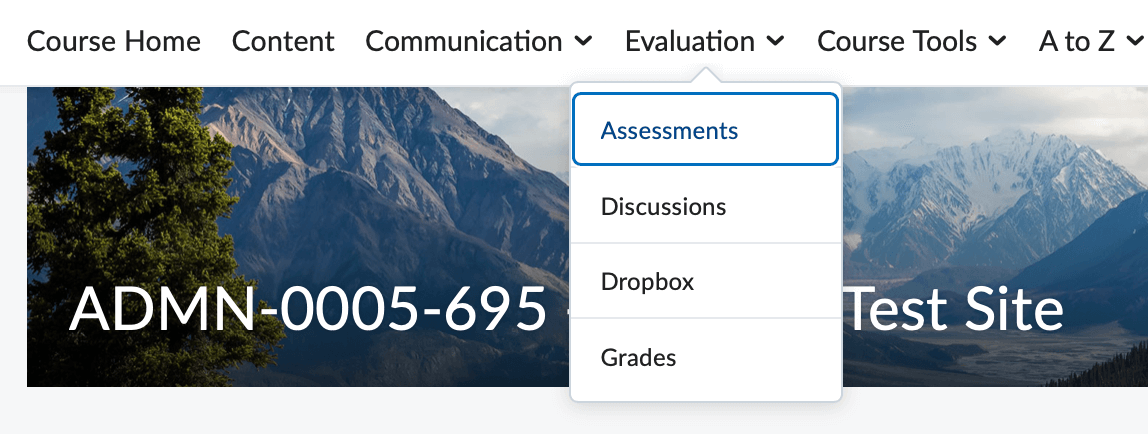
Use the Assessment tool to access quizzes and exams that your instructor makes available
to you. This tool also houses your quiz/exam results as well as the ability to view
quiz questions once completed if enabled by your instructor.
-
Navigating the Quiz List
Navigating the Quiz List
Clicking on the Assessment link from the Evaluation drop-down menu will direct you to the Quiz List page. Use the image and related information to familiarize yourself with the Quiz List page.
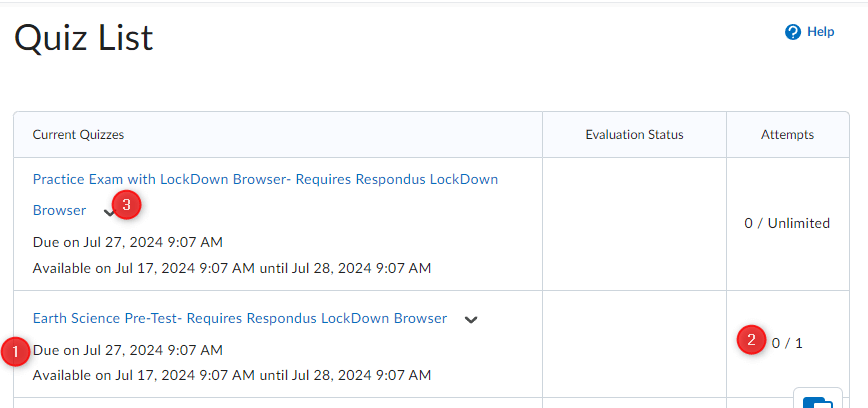
- Quiz Availability – Below each quiz are the dates and times each quiz is available to you. Note that you will not be able to enter an assessment before the start date and time or after the end date and time unless your instructor grants you special access.
- Attempts – The attempts column will display the number of times your instructor will allow you to take a particular quiz as well as the number of attempts you have completed. Note that an asterisk (*) next to your attempt signifies that your attempt has not been submitted. You must submit your attempts before your instructor is able to grade them.
- Context Menu – The context menu is accessed by clicking the downward-facing arrow icon to the
right of the quiz name. This submenu contains links to submission information and
quiz reports.
- Submissions – The Submissions page lists each of your attempts for a particular quiz. Depending on the submission view configured by your instructor, you can see your quiz score, quiz questions, the answers you chose, and the correct answers. You are also able to see the score achieved on the quiz.
- Reports – The reports page lists all quiz reports for which your instructor has granted access.
-
Taking an Assessment
Taking an Assessment
To begin an assessment, click on the quiz name on the Quiz List page. This hyperlink will bring you to the Quiz Summary page. Be sure to read the information included on this page before you start your quiz. This information includes details about time limits, restrictions, and other instructions related to taking the quiz.
To begin your quiz click Start Quiz at the bottom of the page.
D2L will not register that you have attempted a quiz until you click the blue Start Quiz button. Once you click this button, the time limit will start and you can begin answering the quiz questions.
Clicking the Start Quiz button will start the quiz timer. The only way to stop the quiz timer is to submit the quiz. Exiting the browser window will NOT stop or pause the quiz timer.
An assessment’s layout is markedly different; it is divided into three distinct sections: Quiz Banner, Questions panel, and the Quiz body.
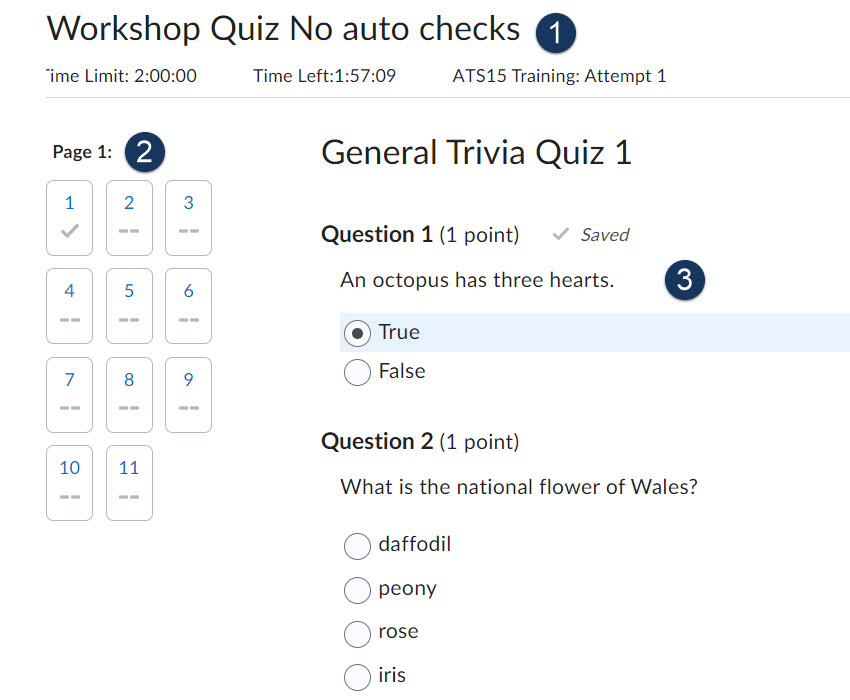
- The Quiz Banner displays the quiz’s time limit, the time remaining on the attempt, and the attempt number.
- The Questions Panel displays the total number of pages within the quiz and how many questions are on each page. Under each question’s number you will see a check mark that your question’s answer has been saved.
- The Quiz Body is the largest frame, located to the right of the Question panel. You will mark and save your question answers as well as submit your quiz within this section.
-
Answering Questions
Answering Questions
Answer the assessment questions by selecting an answer from the list of options or by typing your answer in the appropriate text box.
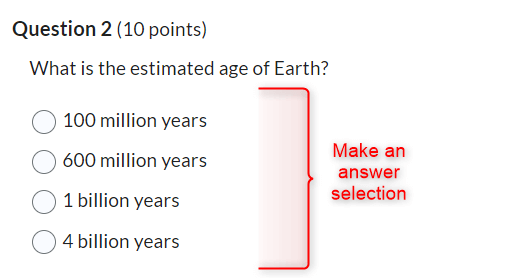
Once you have answered a question, by selecting either the appropriate radio button or typing your response into a textbox D2L will automatically save your answer. Confirmation of you answers saving is located at the bottom of the page.
Note: Your instructor may have chosen to have the quiz questions spread across multiple pages. Click the Next Page button to advance to the next page of the quiz. *Some instructors may prohibit you from returning to previous pages of a quiz. Be sure that you have read and understood the information presented on the Quiz Summary page to confirm if you will have the ability to page back during the assessment.
-
Submitting an Assessment
Submitting an Assessment
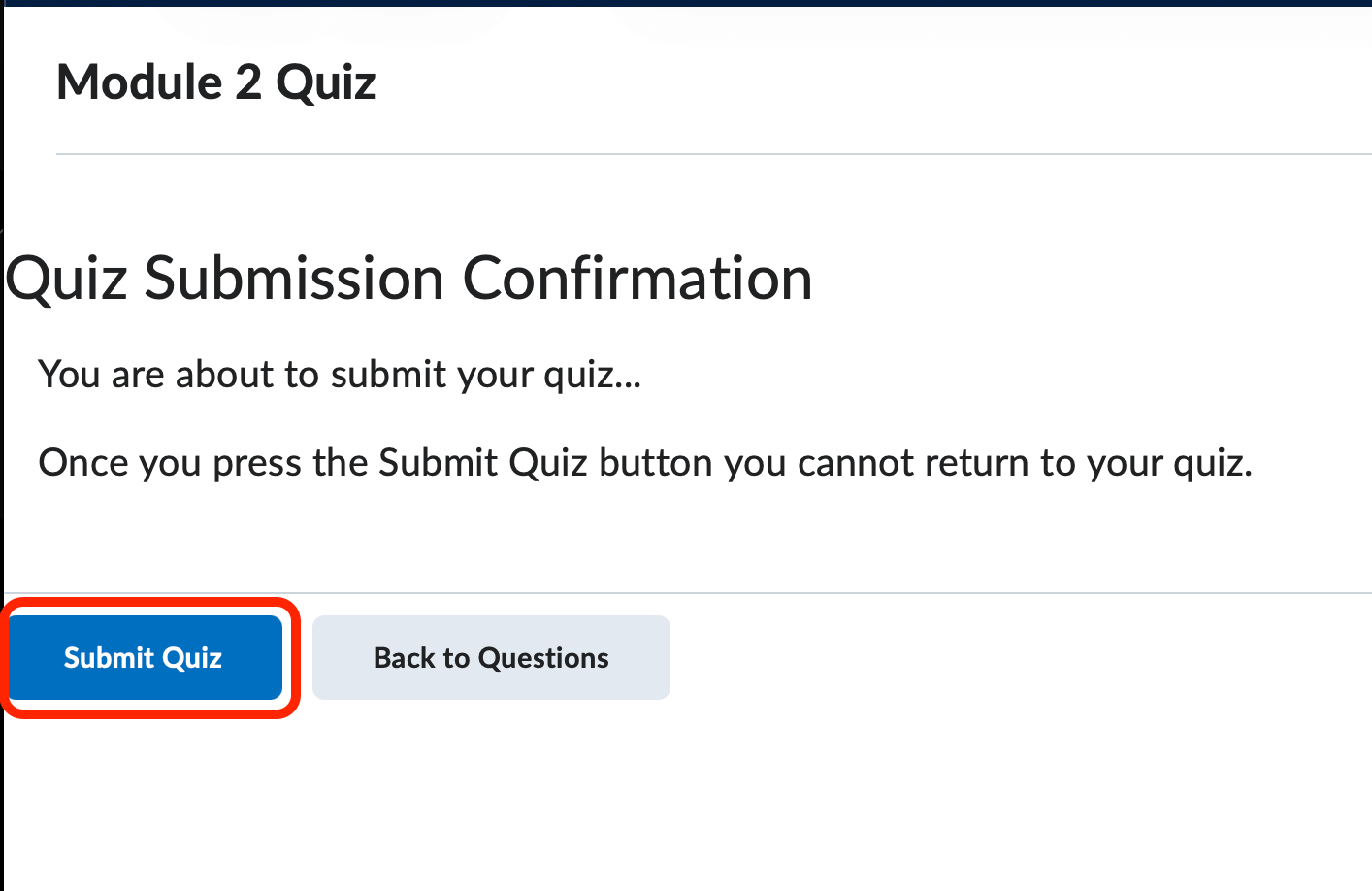
Once you have answered all of the questions, or if time has expired, you will need to press the Submit Quiz button located at the bottom of the page. Clicking this button will display any unanswered questions. This will be your final opportunity to revisit the questions you left unanswered before finally submitting the quiz. Click the Submit Quiz button when you are ready to submit your assessment attempt.
-
Viewing Your Quiz Grade and Feedback
Viewing Your Quiz Grade and Feedback
Submission information allowed by your instructor may be available immediately after submitting your quiz. Many instructors do not release any information until all assessments have been completed. Please check with your instructor if you are not sure what information will be made available to you after your submit a quiz. Essay-type questions will not be automatically graded. Check with your instructor to find when that information will be available. You may return to this information later by selecting the assessment and choosing Submissions.
To view your grade and feedback for a past quiz, follow these steps:
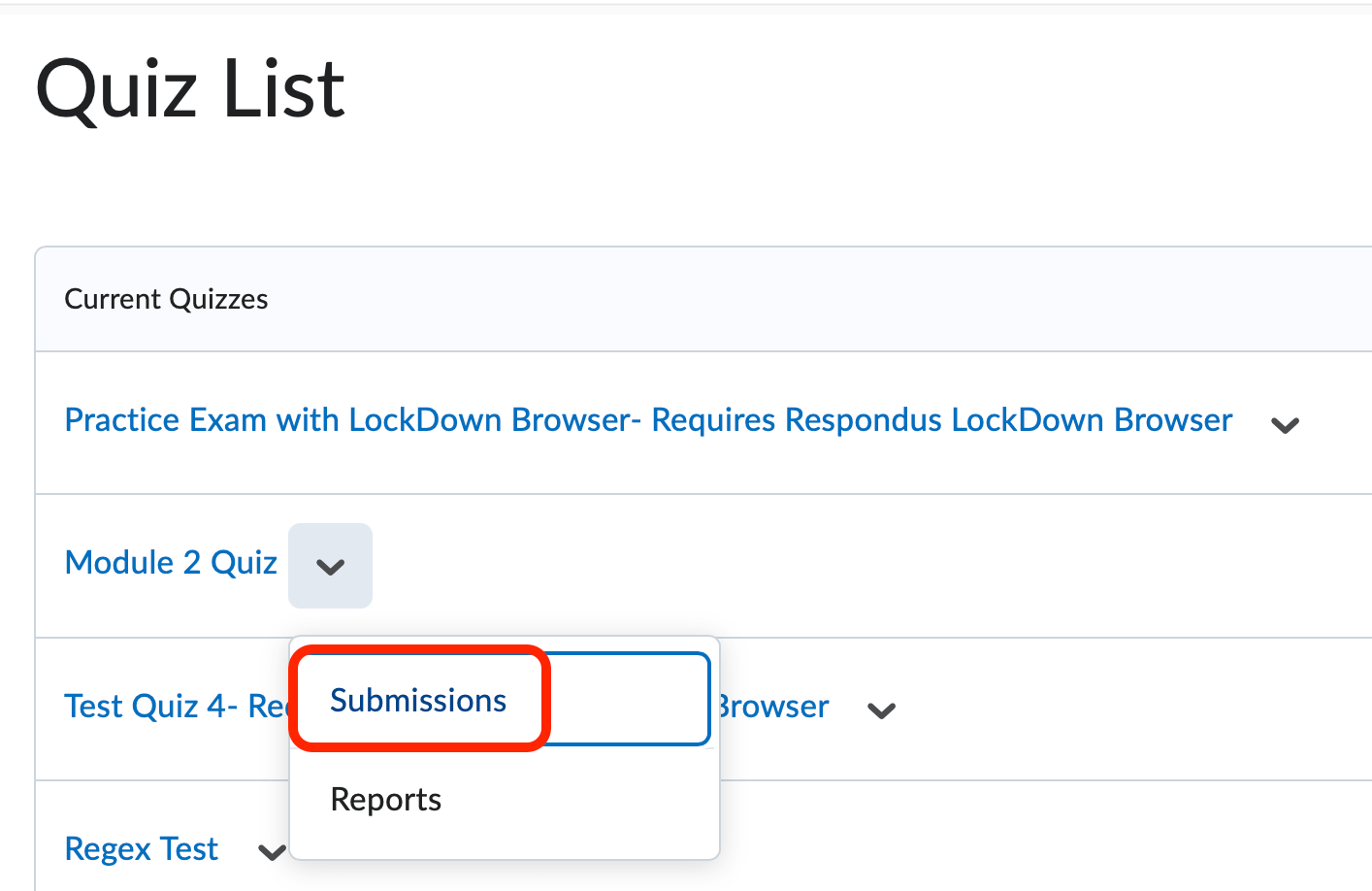
- 1. Navigate to the Quiz list.
- 2. Select Submissions from the quiz’s context menu.
- The Submissions page will display your attempts and the score associated with each
attempt.
- Clicking on the attempt hyperlink will open the submission information for the quiz. Depending on the information released by your instructor you are able to see the quiz questions, your responses, and the correct answers. Additionally, if your instructor chose to include question and quiz feedback, this feedback information will also display.
-
Assessments and Respondus Lockdown Browser
Assessments and Respondus Lockdown Browser
Your instructor may require you to use the Respondus Lockdown Browser to take your exam. The Respondus Lockdown Browser is an independent web browser that locks down the testing environment within D2L. While taking a quiz using Respondus you will not be able to print, copy, navigate to another URL, or access other applications. When you begin an assessment, you are locked into that quiz until you submit it for grading.
Respondus Lockdown Browser for Students
PDF will open in a new browser window -
Quiz Errors
Quiz Errors
Rarely, you may encounter difficulties with the system during an assessment. Any time you experience a computer or internet-related malfunction, simply reopen D2L and attempt to access the assessment again. Oftentimes, re-establishing your internet connection and restarting your web browser resolves the majority of these issues.
When you exit your web browser the quiz timer does NOT stop or pause. Try to access the assessment as quickly as possible to eliminate possibility of time expiring on your quiz.
We have received reports of students being unable to submit an exam. If you should experience this issue, confirm that all of your responses are saved and contact your instructor immediately. Your instructor can then submit the quiz on your behalf.