Qualtrics
- Overview
-
Qualtrics is an easy-to-use, web-based tool for building and conducting online surveys. Qualtrics has a range of features to meet both simple and complex survey creation and distribution needs. Qualtrics can be used for a variety of data collection purposes:
- Research, including panels, pre/post tests, and evaluations
- Teaching, including course evaluations and quizzes with immediate feedback
- Administration, including program assessment, event feedback, and opinion surveys
- Forms such as applications, contact forms, and agreements, and the collection of uploaded files
Qualtrics Activation: 1st Sign In
To access Qualtrics for the first time and activate your account, you must first log into you Outlook account on the web. If you already have a Qualtrics account under a personal or departmental license (non-ETSU site wide), you will still need to go through this process to activate your free ETSU account. Once this account is created, you can merge your old account with your new one (See account migration under the resources tab).
Once you have logged in, you will then select the cluster of dots in the top left corner of your Outlook page.
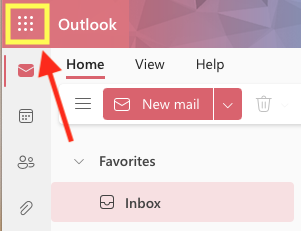
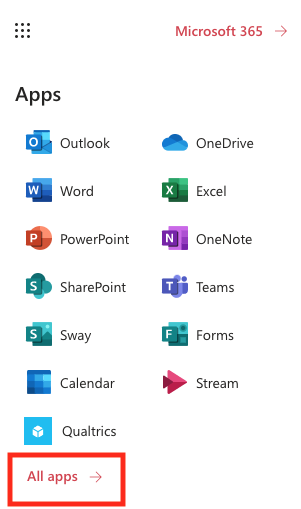
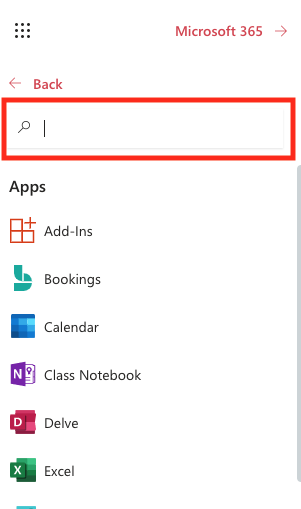
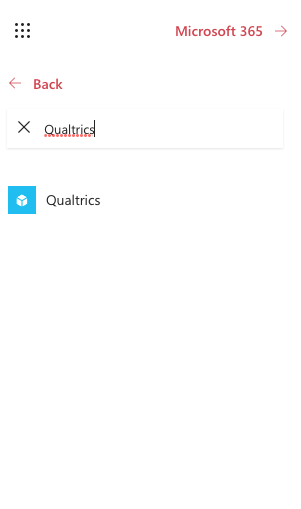
Once you click on the dots, you will see your apps menu on the left. You will then need to select the all apps button at the bottom. Type Qualtrics into the search bar and you will see the Qualtrics icon appear. Select the icon. After your account has been activated, the Qualtrics icon should show up on your apps home menu (see picture one below). You shouldn't have to search for it in the future.
After clicking the Qualtrics icon, you will be directed to a page that asks how you would like to sign on. You will then select "My organization's single sign-on (SSO). It will then ask if you have a pre-existing Qualtrics account. You will answer NO to this quesiton and click sign in with username and password. *If you already have a Qualtrics account under a personal or departmental license (non-ETSU site wide), you will still need to select no to activate your free ETSU account. Once this account is created, you can merge your old account with your new one (See account migration under the resources tab).
Once your account has been activated, Qualtrics will take you to your account home page. You are free to begin programming. (See DIY trainings under the resources tab to learn the basics).
Post Account Activation Access
If you have already activated your account you can log on to Qualtrics through the link below or by going to https://etsu.qualtrics.com.
SSO Sign In
- Highlighted Features
-
- Free Training via BaseCamp to help new users create surveys with the Qualtrics Survey Builder
- Execellent chat support for when users get stuck
- Control survey flow with branch, display, and skip logic functions
- Control question visability with branch, display, and skip logic functions
- Access to a library of question types, with randomize, carry forward, and force response options
- Send and track participation email invitations and reminders
- QR code generator
- Anonymous data collection option
- HIPAA compliant servers, when feature is activated
- End of survey trigger emails and thank you messages
- Customizable reports, including basic graphs and tables of raw data that can be shared
- Export data to a variety of formats, including Excel, SPSS, Google Drive, PDF, and Word
- Ability to upload files
- Qualtrics automatically formats surveys for web and mobile compatibility
- Fraud Detection, including Bot and Spam identification