FINALFORMS
PARENT REGISTRATION
HOW DO I SIGN UP?
1. Goto https://washingtoncounty-tn.finalforms.com
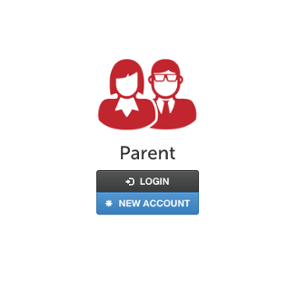
2. Click NEW ACCOUNT under parent icon-----
3. Type your NAME, DATE OF BIRTH, and EMAIL; then click REGISTER.
4. Check your Email for a FinalForms Email, and click CONFIRM YOUR ACCOUNT in the email text.
FINALFORMS
Hello Clay Burnett,
Your FinalForms parent account with Demoville School has been successfully created.
Please click here to confirm the your account and complete your registration.
Thank you,
Demoville Schools Athletics
NOTE: You will receive an email within 2 minutes prompting you to confirm and complete
your registration. If you do not receive an email, check your spam folder. If you
still do not see the FinalForms email, please email support@finalforms.com
5. Create your new FinalForms password and click CONFIRM ACCOUNT. Please save your account login information as you will need to log in yearly to
update forms.
6. Click REGISTER STUDENT for your first child.
REGISTERING A STUDENT
HOW DO I REGISTER MY FIRST STUDENT?
***IMPORTANT*** If you have followed the steps on the previous page, you may Jump to Step 3.
1. Go to https://washingtoncounty-tn.finalforms.com/
2. Click LOGIN under the Parent Icon. (See reverse to create a parent account.)
3. Click REGISTER STUDENT
4. Enter your students information:
a. Type in the LEGAL NAME of your child. The name of your child must match their
birth certificate.
b. Leave your child's school email field blank. We will add it once it is created.
c. Complete the other requested information.
d. Do not check any boxes under "Uncommon Situations"
e. Click CREATE STUDENT.
5. If your student plans to participate in a sport, activity, or club, please click the
checkbox for each. Click UPDATE after making your selection.
NOTE: A selection can be changed any time until the registration deadline.
6. Complete each form and sign your full name (i.e. ‘John Smith’) into the Parent
Signature field at the bottom of the page. After signing, click SUBMIT FORM and move
on to the next form.
7. When all forms are completed, you will see a "Forms Finished" message. Forms turn
green once completed.
8. If you have any questions about the forms, please contact the school.
HOW DO I REGISTER ADDITIONAL STUDENTS?
Click MY STUDENTS. You may repeat steps 3 through 7 for each additional
Student.
HOW DO I UPDATE INFORMATION?
LOGIN at any time and click UPDATE FORMS to update information for any Student.