Accessing Rubrics
The Rubrics tool is located in the Course Tools submenu. To access Rubrics, click on the Course Tools link and select Rubrics from the drop-down menu.

The Rubrics tools provides an opportunity for you, as the instructor, to create grading rubrics for your assignments. Using grading rubrics are a great way to communicate your expectations to your students. Use a grading rubric to measure student performance fairly and consistently.
A Note About Creating Grading Rubrics
Rubrics are comprised of three parts:
- Criteria – Attributes on which the assignment will be assessed
- Levels of Competency – Standards each criterion must meet.
- Level Values – The grade or point value assigned to each level of competency
A best practice is to create your learning objectives before creating your grading
rubrics. By doing so, your objectives and grading expectations will all align and
can be communicated clearly to your students.
For complex assignments, creating a multi-dimensional grading rubric may be helpful.
Creating multi-dimensional grading rubrics in D2L does require additional setup. Namely,
multi-dimensional rubrics require dividing assessment criteria into level groupings.
For example, an assignment may have some criteria which identify only two levels of
competency and other criteria which identify four levels of competency. In such cases,
creating two level groups within your grading rubric would be necessary. For more
advanced rubric assistance, including help with multi-dimensional grading rubrics,
please contact the ATS office by phone by dialing 423-439-8611 or by emailing d2lhelp@etsu.edu.
-
Create a Rubric
Create a Rubric
- From the Course Homepage, click on Course Tools and select Rubrics from the drop-down menu.
- Click the blue New Rubric button. The New Rubric page will open with the “Properties” tab displayed.

- Enter a name for the rubric in the Name field.
- Click on the options at the top of the rubric to select rubric type (Holistic or Analytic), scoring, and order.

- By default, you will start with three levels and four criteria. Use the + buttons on the left and right to add levels above or below the existing ones. Click on Add Criterion at the bottom of the rubric to add more criteria.

- Enter a name for the criterion.
- Enter a description of your expectations and the grading guidelines for each level. Your students will be able to view these descriptions before they submit an assignment.
- Optional: Enter text for feedback for each level. After students have submitted their assignment and it is assessed by the rubrics they will see the feedback for the level they achieved.
- To create a multidimensional rubric, you may click on Add Criteria Group. This will create a new set of criteria that you can edit and add to the rubric.
- The Overall Score table allows you to set the levels for the assignment based on the
number of points in the rubric. Set these levels to your desired range and add comments.

- Click Close to save and close.
Publish a Rubric
As a best practice, we suggest keeping your rubric in draft mode until you have completed the setup process. After you have completed the setup and configuration of your rubric you must set it to a published status before you will be able to associate the rubric to a dropbox or discussion board.
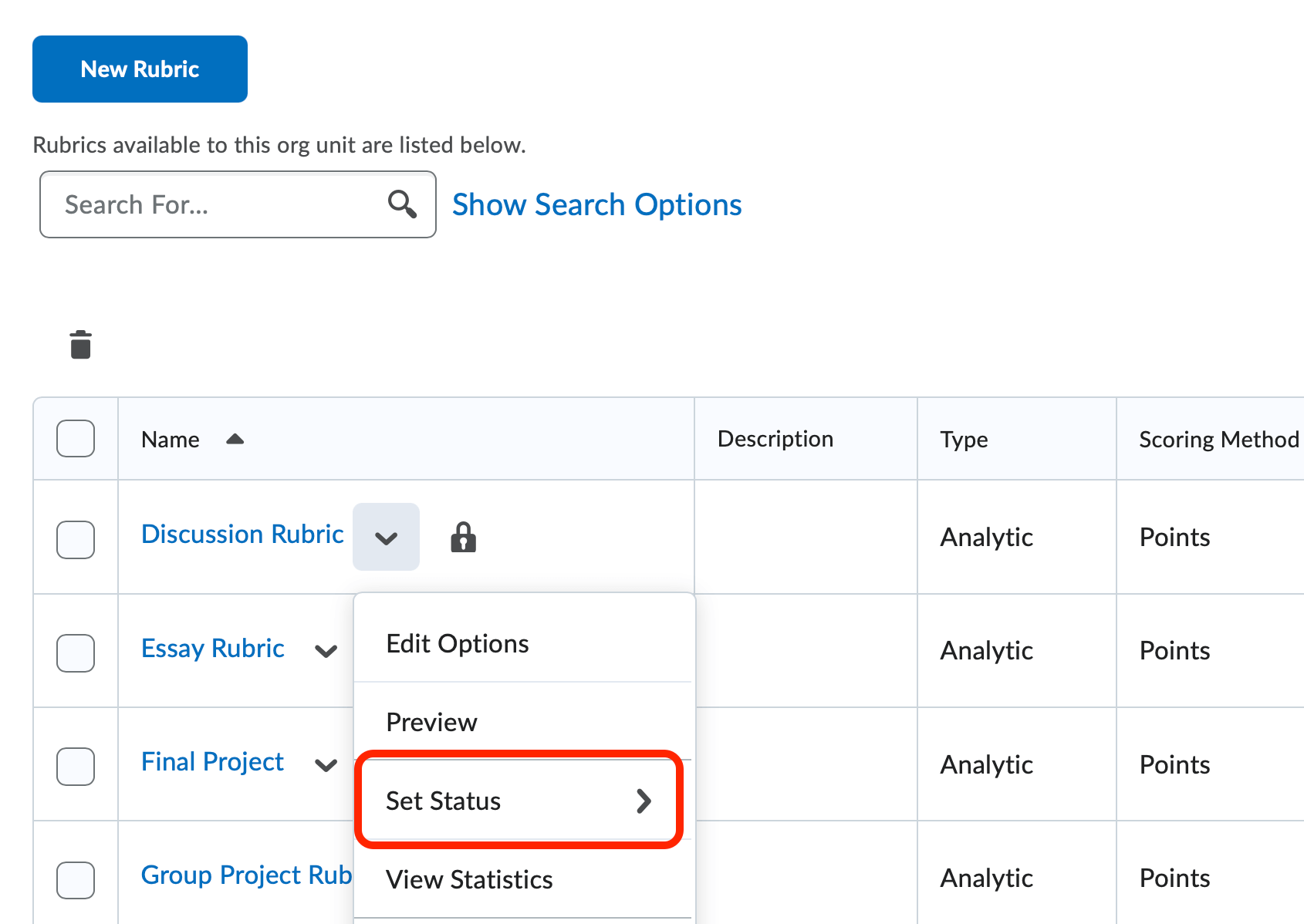
- From the Rubrics page, click the drop-down arrow next the Rubric you want to configure and select Set Status.
- Choose Published from the menu.
-
Edit a Rubric
Once you have associated a published rubric to a learning activity you will not be able to edit it. You can, however, create a copy of the rubric, make changes to that copy, and then associate the updated rubric to the intended learning activity. Follow these steps to create a copy of a rubric for editing:
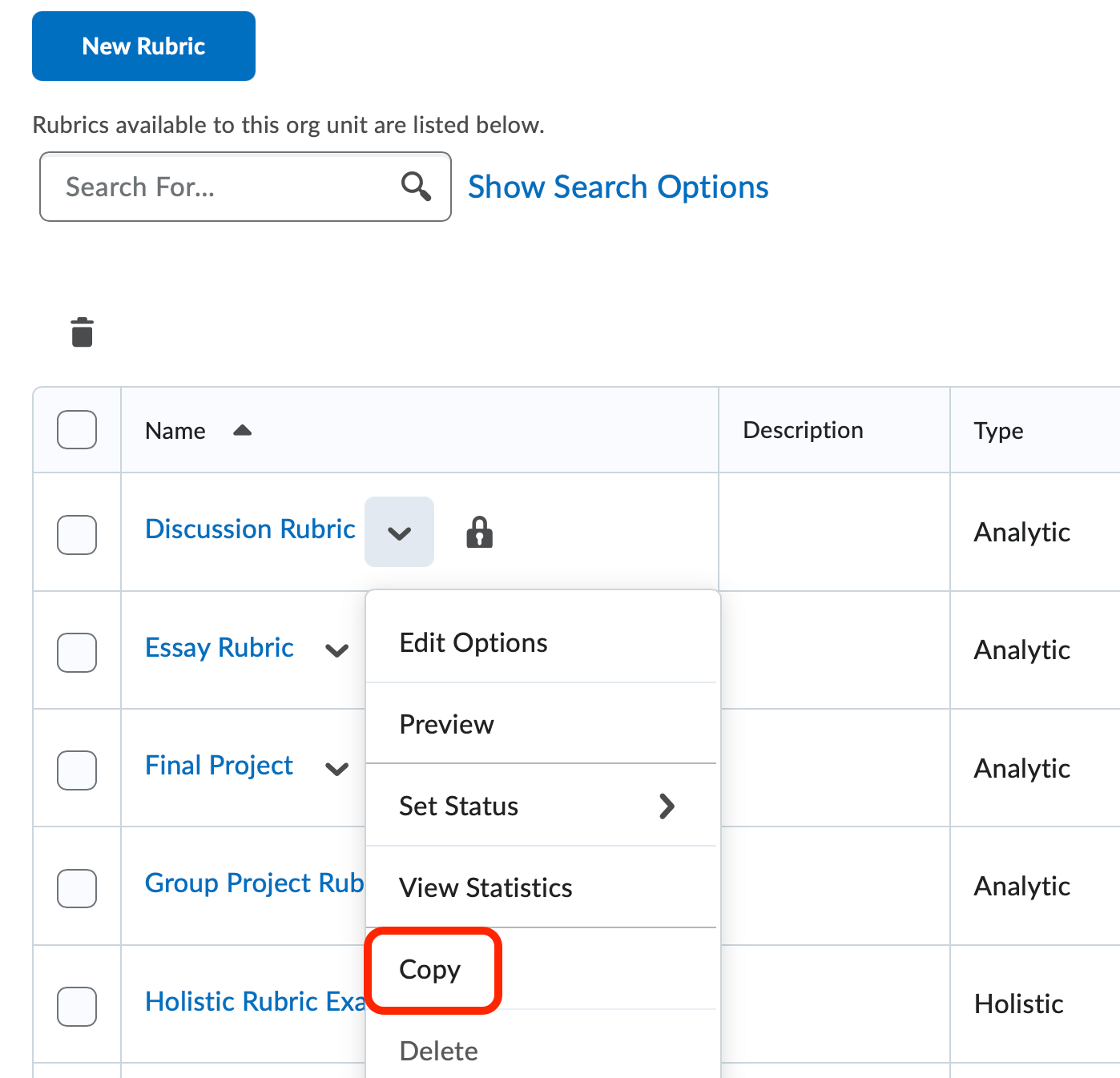
- From the Rubrics page, click the drop-down arrow next the Rubric you want to copy and select Copy.
- Click the name of the rubric copy.

- Update or replace the name of the rubric copy with your new rubric’s name.
- Make any other changes to the rubrics properties, criterion, or levels.
- Click Save
- Associate the updated rubric to the learning activity of your choice. If you need assistance, refer back to the section of this page labeled “Associate a Rubric to a Learning Activity”
- From the Rubrics page, click the drop-down arrow next the Rubric you want to copy and select Copy.
-
Associate a Rubric to a Learning Activity
You can associate, or connect, a rubric to a learning activity such as a discussion topic, a dropbox folder, or a grade item in your gradebook. Only published rubrics may be associated with learning activities. To begin, navigate to the learning activity you plan to associate with your rubric and then follow these steps:
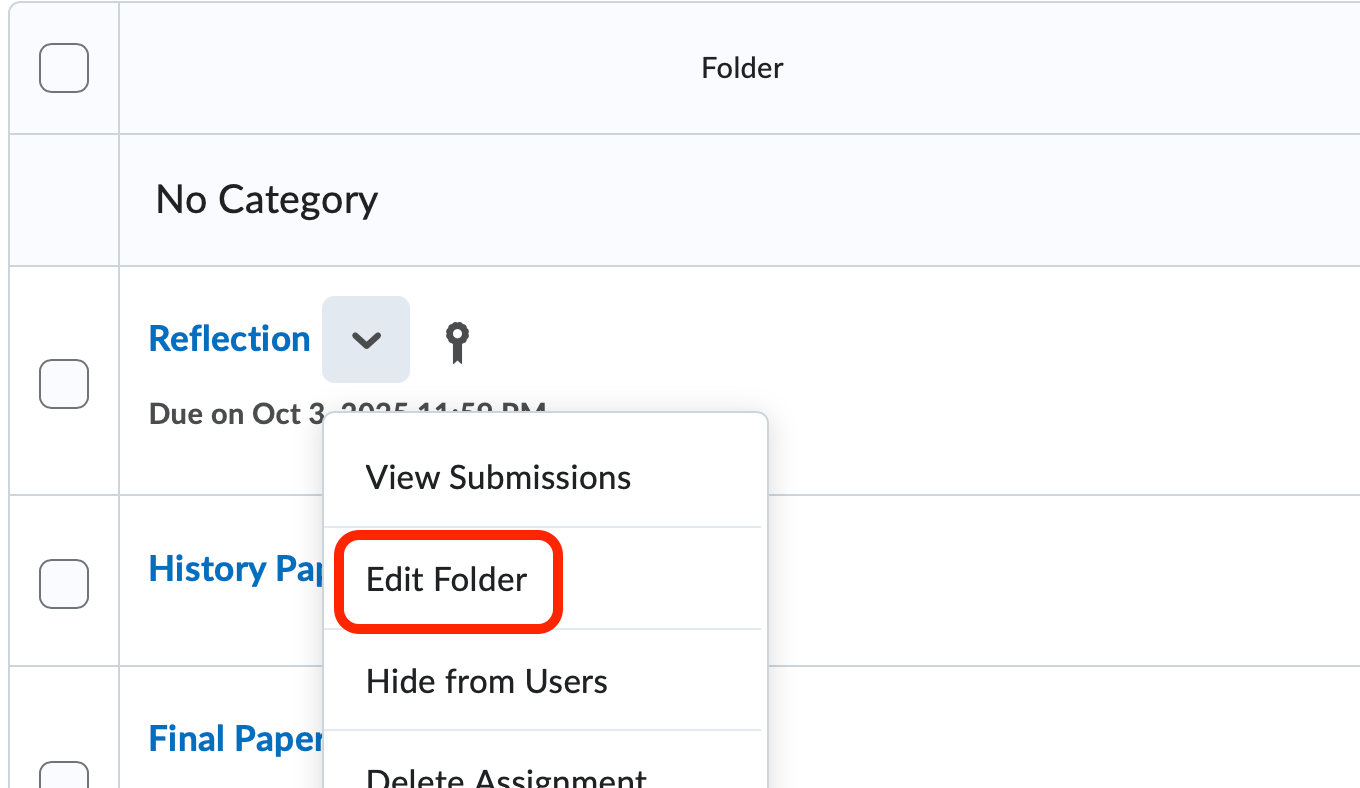
- Click the dropdown arrow to the right of the item’s name and select Edit option. The
name of the Edit option will vary depending on the learning activity you have selected.
- Under the Evaluaton and Feedback menu, click the Add Rubric button and select Add Existing.

- Check the checkbox next to the rubric you would like to add.

- Click the Add Selected button. This action will return you to the Edit Properties page of the learning activity.
- Click Save and Close.
- Click the dropdown arrow to the right of the item’s name and select Edit option. The
name of the Edit option will vary depending on the learning activity you have selected.
-
Grading a Dropbox Assignment with a Rubric
Assessing a Dropbox Assignment with a Grading Rubric
- Open the Dropbox tool by selecting Dropbox from the Evaluation Link Group on the course default navigation bar.
- Select a folder by clicking on the folder name.
- Select a student’s submission by clicking on the submission’s file name.

- Review the student’s submission.
- Click on the title of the rubric in the right hand window to expand the rubric criteria
to score. Additionally, you can select to open the rubric in a new window.

- For each criterion row, select the level of competency the student achieved by clicking the appropriate bar. The rubric will calculate the student’s score as you complete the rubric.
- Once you have selected a level of competency for each criterion you may review the
information and point values assigned in the Overall Grade and Feedback column. If
you would like to edit the score or add feedback for a particular criterion, click
the Add Feedback in the associated row.

- Once you are satisfied with the score and have added the appropriate feedback, click on Publish to save and publish the grade.
- Depending on your workflow click either the Publish button, the Save Draft button, or the Update button to save your changes.
-
Grading a Discussion Board Topic with a Rubric
Assessing a Discussion Board with a Grading Rubric
- Open the Discussion Board tool by selecting Discussions from the Evaluation option on the course navigation bar.
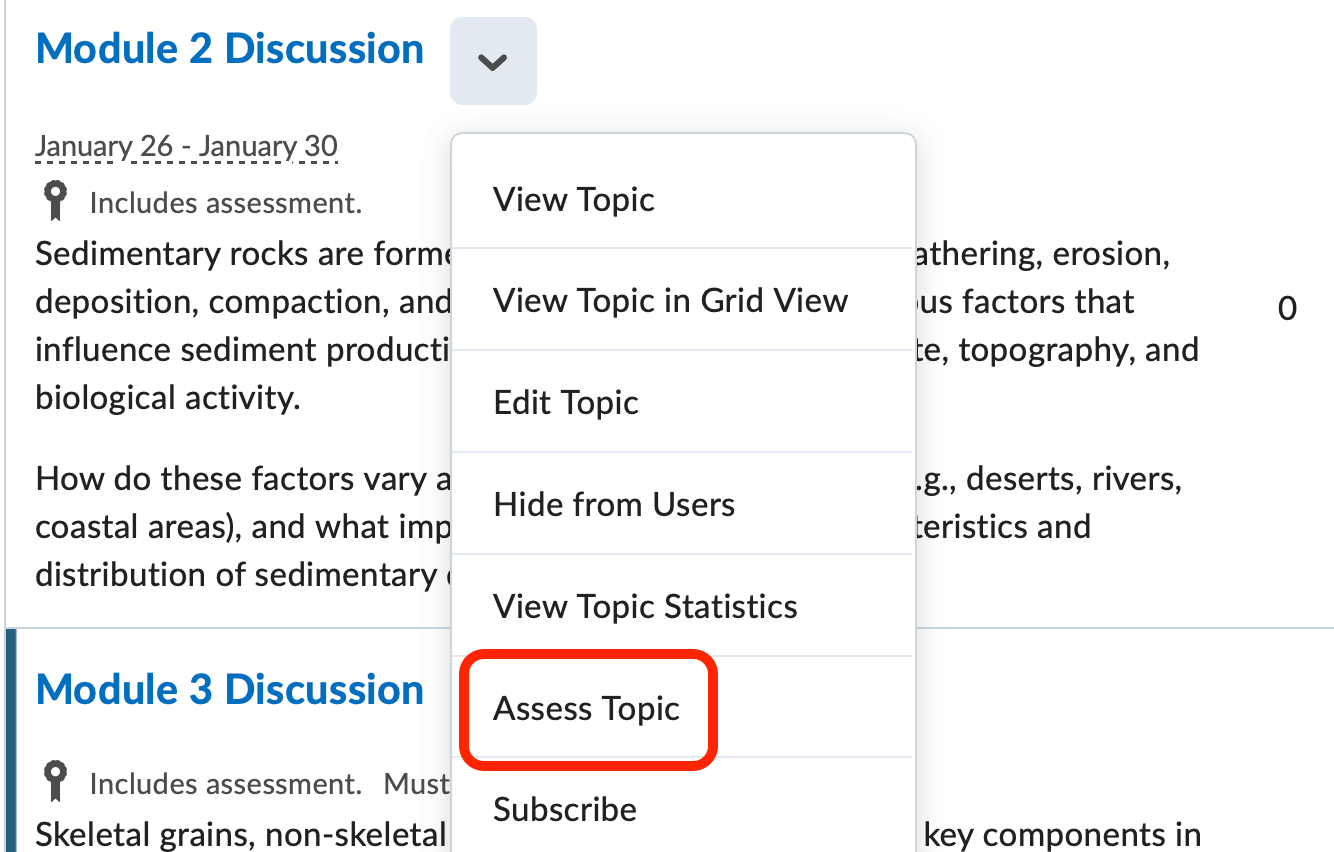
- Click the drop-down arrow of the topic you want to assess and click Assess Topic.
- Select a student to assess by clicking on the Topic Score located below a student’s name. A new window will pop up displaying the rubric and
the student’s posts within the topic.

- Review the student’s topic performance.
- Click on the title of the rubric in the right hand window to expand the rubric criteria
to score. Additionally, you can select to open the rubric in a new window.

- For each criterion row, select the level of competency the student achieved by clicking the appropriate bar. The rubric will calculate the student’s score as you complete the rubric.

- Once you are satisfied with the score and have added the appropriate feedback, click on Publish to save and publish the grade.
- Depending on your workflow click either the Publish button, the Save Draft button, or the Update button to save your changes.
Note: that in the Discussion Board D2L will not automatically populate the topic score with the score the rubric calculated. You must record the score generated by the rubric in the Score textbox.

-
Grading a Grade Item with a Rubric
Assessing a Grade Item with a Grading Rubric
- Open the gradebook by selecting Grades from the Evaluation option on the course navigation bar.
- Click the drop-down arrow next to the grade item you would like to grade and select
Enter Grades.

- For each student, click on the Rubric icon located in the Assessment column. A new window will open displaying the associated rubric.

- For each criterion row, select the level of competency the student achieved by clicking the appropriate box. The rubric will calculate the student’s score as you complete the rubric.

- Once you have selected a level of competency for each criterion, click Publish. If you wish to wait to publish the grades later, click on Save Draft.
- You will be taken back to the main Enter Grades page. Any students you grade will
automatically be moved to the bottom of the list. You may review the information and
point values assigned in the Score and Feedback column. If you would like to add feedback
for the grade item, click the pencil icon in the associated row. Make the appropriate changes and then click Save to return to the rubric.

- Once you are done entering grades, click Save and Close. You can also click on Save if you would like to save your work and finish grading later.
Note: If you associate a rubric with a grade item, you will not be able to add a grade item to a learning activity. You will need to remove the rubric from the grade item first in the grade book and only associate it to the Evaluation and Feedback section of the desired learning activity.